
Introduction
With the terminology covered and your configuration ready from Part 1, it's time now to build your muscle memory. Navigating Emacs entirely by keyboard has no real shortcuts; it just requires patience, consistency, and a lot of practice. I can't promise you that you will memorize all of the keybindings in this guide, but I can assure you that you will be able to know the commands you need, how to invoke them, and how to recall their keybindings in case you forget them.
Once your muscle memory is built, editing in Emacs will feel like playing an instrument. You will never be using your mouse or arrow keys, and you will be pressing keys without even thinking about it.
Note: I found it extremely rewarding to invest in an ergonomic split keyboard. Also, if you're not typing properly on keyboard using touch typing, you may consider practicing it more as making typing mistakes in
Emacscould be very inefficient.
The Input Hierarchy: Characters, Chords, and Sequences
Whenever you press a key on your keyboard, Emacs translates that key to an Elisp function and invokes it. There are three different types of Emacs keys that you need to be aware of:
Normal Characters
Standard alphanumeric keys (a–z, numbers, punctuation). These will most of the time be inserted directly into the focused buffer. Only in some special major modes (like Dired which will be explained later), the standard keys may actually trigger commands instead of inserting characters.
Key Chords
A key chord is when you press a normal character while holding down one or more modifier keys. The below table shows the modifier key symbol in addition to its keyboard key and Emacs. It's very similar to modern keyboard keys except for Meta, which refers to Alt (typical keyboards), or Option (Mac keyboards).
| Symbol | Keyboard Key | Emacs Name |
|---|---|---|
C | Ctrl | Control |
M | Alt or Option | Meta |
S | Shift | Shift |
These symbols are combined with dashes to form key chords. The table below shows some key chords and how they are described in modern keyboard:
| Emacs Symbol | Keyboard Key |
|---|---|
C-f | Control+f |
M-f | Alt+f |
C-M-n | Control+alt+n |
C-S-c / C-C | Control+c |
Key Sequences
A Key Sequence is a combination of key chords or normal characters pressed in order. We call the first key in this sequence prefix key, the keys or chords that follow it are separated by space. The table below shows examples of key sequences and how they are represented in modern keyboards.
| Emacs Symbol | Keyboard Key | Prefix Key |
|---|---|---|
C-x C-f | Control+x followed by Control+f | C-x |
C-x p p | Control+x followed by p then p | C-x |
C-h k | Control+h followed by k | C-h |
Essential Commands
Before learning how to move around, it's important to know first how to invoke a command by name, and how to cancel current command.
The Command Palette: M-x
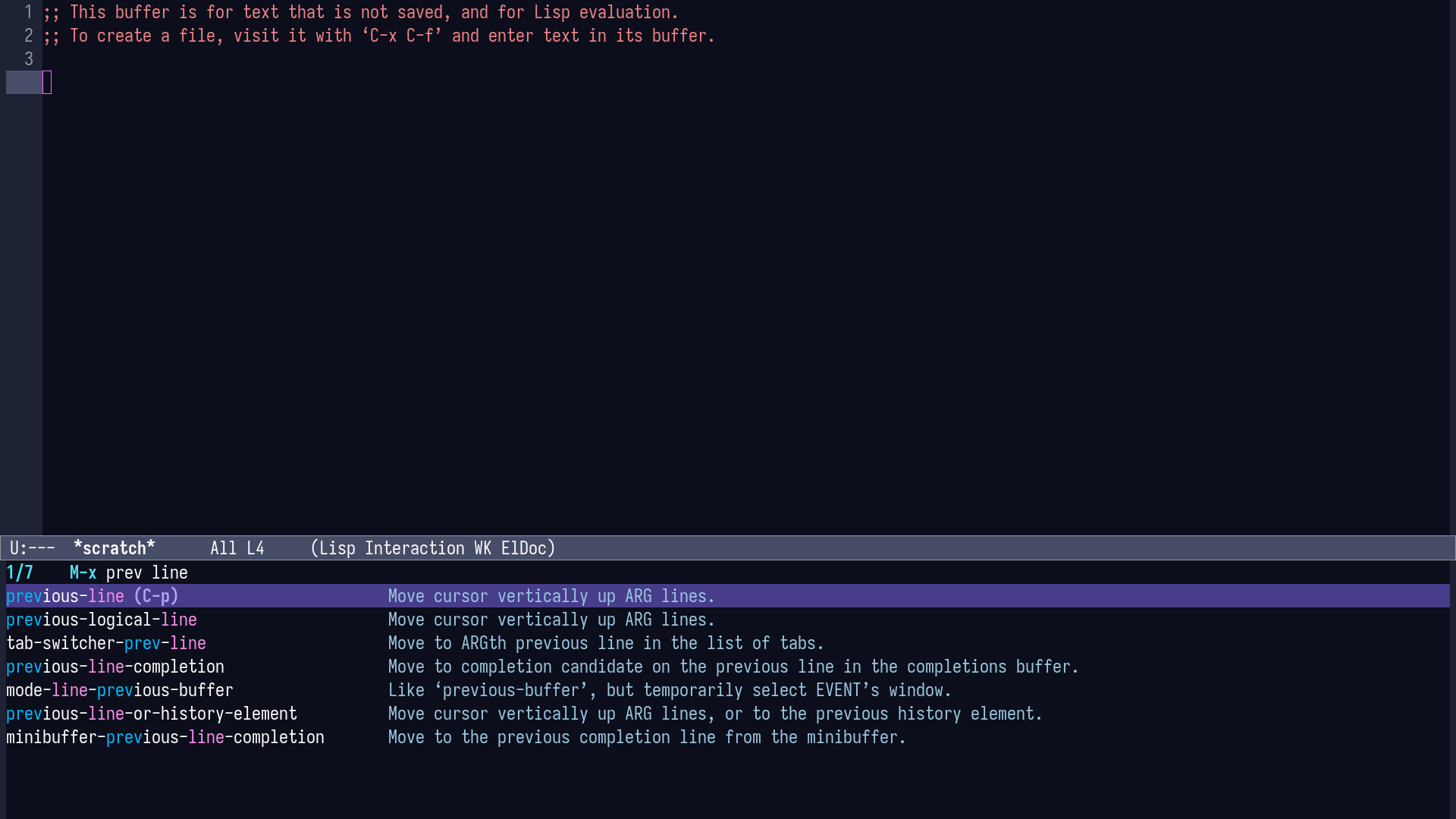
I strongly recommend that you fire up Emacs and press M-x at this point. This guide will only be useful if you practice what you learn. You should see something like the screenshot below. If so, congrats! You're looking at the minibuffer.
From here, you can find a command using fuzzy searching, if you start typing space separated keywords (like prev line), the list will filter down to show you the command you're looking for. Next to each command, the minibuffer displays its keybinding and a brief description as well. This is the best way to recall a keybinding when you forget it. If you know that a command exists and remember part of its name, you can find it via M-x (execute-extended-command).
The Panic Button: C-g
C-g (keyboard-quit) is the universal escape keybinding. It aborts incomplete key sequences and active prompts. Try out pressing C-g (keyboard-quit) after pressing M-x (execute-extended-command), you should notice that the minibuffer will be closed.
Note: Throughout this guide, I use the format
key(command-name) to show both the keybinding and its associated Emacs command. For example,C-g(keyboard-quit) means pressingC-gexecutes thekeyboard-quitcommand.
You now know the two essential commands I want you to remember along with their keybindings. I won't ask you for now to remember any more keybindings or commands, I just want you to know that they exist and notice their command name pattern.
| Keybinding | Function Name | Action |
|---|---|---|
M-x | execute-extended-command | Invokes any Emacs command by name |
C-g | keyboard-quit | Universal panic button, cancels active prompts and operations |
Font Scaling
If text looks smaller or larger than what you expect on your screen, these commands help you scale it up or down.
| Keybinding | Function Name | Action |
|---|---|---|
C-x C-+ | text-scale-increase | Increases buffer font size |
C-x C-- | text-scale-decrease | Decreases buffer font size |
C-x C-= | text-scale-adjust | Resets buffer font size to default |
Note: As mentioned earlier, there's no need to memorize keybindings. Notice the pattern in the function/command names of font scaling, they all begin with
text-scale. You can run them directly by name viaM-x. When you typetext scalein yourM-x, you will see these commands along with their keybindings to refresh your memory. Over time, muscle memory will take over and you won't needM-xas often.
Text Navigation
There is a mnemonic logic behind Emacs navigation keys, this might make them easier to recall early on. Once you build that muscle memory, you won't even think about the letters and naming anymore. If these mnemonics don't make sense to you, feel free to skip them:
ffor Forwardbfor Backwardnfor Next linepfor Previous lineafor Ahead (start of line)efor End of line
Short-Range Navigation
| Keybinding | Function | What It Does |
|---|---|---|
C-f | forward-char | Go to next character |
C-b | backward-char | Go to previous character |
C-n | next-line | Go to the next line |
C-p | previous-line | Go to the previous line |
C-a | move-beginning-of-line | Go to the beginning of the line |
C-e | move-end-of-line | Go to the end of the line |
M-m | back-to-indentation | Go to the first non-whitespace character on the line |
M-f | forward-word | Go to next word |
M-b | backward-word | Go to previous word |
Long-Range Navigation
| Keybinding | Function | What It Does |
|---|---|---|
M-a | backward-sentence | Go to the beginning of the sentence |
M-e | forward-sentence | Go to the end of the sentence |
M-{ | backward-paragraph | Go to the previous paragraph |
M-} | forward-paragraph | Go to the next paragraph |
M-< | beginning-of-buffer | Go to the beginning of the buffer |
M-> | end-of-buffer | Go to the end of the buffer |
M-g g | goto-line | Go to the entered line number |
M-g c | goto-char | Go to a specific character offset |
Universal Argument (C-u)
You may want to execute a command C-n (next-line) 10 times, which will take go to 10 line below. In such cases, it will be inefficient to press the chord 10 times. You can instead use C-u (universal-argument) to repeat the execution of a command. Try pressing C-u 10 C-n, this means you want to repeat the command C-n (next-line) 10 times, you can replace 10 with any number and C-n with any other command.
Deletion, Editing & The Kill Ring
A new concept and term to learn before proceeding is Kill Ring: a clipboard with history that stores every piece of text you cut or copy. Emacs was created long before modern conventions like cut, copy, paste, and clipboard were standardized, it invented its own concepts and terminology to describe them and they are in fact more powerful than typical copy and paste commands found in modern applications.
Deletion vs. Killing
Emacs has two concepts in deletion of text:
- Deletion: Discards text without saving it (Delete).
- Killing: Discards text and saves it into the
Kill Ring(Cut).
Whenever you see a command that says kill, then it will cut the text and store it into the kill ring. If the command says delete, then it will delete the text without storing it anywhere.
| Keybinding | Function | Behavior |
|---|---|---|
DEL / BACKSPACE | delete-backward-char | Deletes previous character (not saved to kill ring) |
C-d | delete-char | Deletes character under cursor (next character) |
M-DEL | backward-kill-word | Cuts characters until previous word into kill ring |
M-d | kill-word | Cuts characters until next word |
C-k | kill-line | Cuts characters until the end of line (hit again to kill the newline) |
C-S-BACKSPACE | kill-whole-line | Cuts current line (including newline) |
M-k | kill-sentence | Cuts forward to end of sentence |
M-z <char> | zap-to-char | Cuts all characters until the specified character |
Yanking and Cycling the Kill Ring
In Emacs terminology, pasting is called Yanking. Another key concept to learn before proceeding is Region: the currently highlighted or selected text in a buffer. You can click and drag in Emacs with your mouse to select text like you do in any other application such as your web browser. However, the Emacs way is to press C-SPC (set-mark-command). This sets a marker at your cursor, moving anywhere with Emacs navigation keys and commands will then expand the highlighted region. We’ll discuss other methodologies to select text in later articles.
In Emacs, the cursor position is called the Point. When you press C-SPC (set-mark-command), you store current Point position into the Mark. The area between your Point and Mark is the active Region.
Note: Don't forget your panic button,
C-g(keyboard-quit)! It can be used to cancel the selection/active region.
| Keybinding | Function | Behavior |
|---|---|---|
C-SPC | set-mark-command | Activates marker (selection), C-g (keyboard-quit) to cancel |
C-x C-x | exchange-point-and-mark | Swaps point and mark, helpful to expand selection from the other direction |
C-w | kill-region | Cuts the active region |
M-w | kill-ring-save | Copies the active region |
C-y | yank | Pastes most recent entry from the kill ring |
M-y | yank-pop | Pastes a selected entry from the kill ring |
Formatting & Indentation
| Keybinding | Function | Action |
|---|---|---|
C-o | open-line | Inserts a newline after the point and keeps the cursor position |
C-M-o | split-line | Splits line at point |
M-SPC | cycle-spacing | Cycles whitespace around point (single space, no space, original) |
M-^ | delete-indentation | Joins current line with the line above |
Case Transformations & History Recovery
Text Case Manipulation
| Keybinding | Function | Action |
|---|---|---|
M-u | upcase-word | Converts remainder of word at point to UPPERCASE |
M-l | downcase-word | Converts remainder of word at point to lowercase |
M-c | capitalize-word | Capitalizes the leading letter of the word at point |
C-x C-u | upcase-region | Converts active region to UPPERCASE |
C-x C-l | downcase-region | Converts active region to lowercase |
Undo, Redo, and Recovery
Emacs offers powerful ways to navigate and revert edit history, for the sake of simplicity, your setup is configured to follow conventional undo and redo behavior.
| Keybinding | Function | Action |
|---|---|---|
C-_ or C-/ | undo | Undoes previous changes |
C-M-_ | undo-redo | Redoes undone changes |
revert-buffer | Reloads the file fresh from disk |
Note: Leaving the keybinding empty for
revert-bufferisn't a typo! Emacs comes with thousands of built-in commands and that number grows as you install packages and write your own functions. Only a fraction of commands are bound to keys. Later, you'll learn how to assign custom keybindings to your most frequently used commands. In the meantime, any unbound command can be run anytime viaM-x(execute-extended-command).
What's Next?
In Part 3: Search and Replace, Files, and Projects, we will explore Emacs's Incremental Search (isearch), query replacements, Occur mode, and how the mark and region system work in detail.