Introduction
We discussed earlier the objective of the firmware which was to test the hardware and run the bootloader. The bootloader is a small program that has one objective, to load the kernel properly in RAM hand control to it.
GRUB (GRand Unified Bootloader) is one of the most popular bootloaders available for GNU/Linux, other options like systemd-boot also exist which are more lightweight.
Objective
The bootloader will perform multiple steps until it hands controls to the kernel.
Loading Kernel & Initramfs
The Linux kernel vmlinuz is the core of kernel. It's small and contains only essential components. Other modules like drivers and filesystem support are loaded on demand and their extension is .ko.
Initializing RAM
The initramfs (Initial RAM Filesystem) contains the needed modules and drivers required in order to allow the kernel to read your filesystem. This may look a bit confusing as a very valid question will be raised here, why these needed drivers aren't just part of the kernel itself? and the answer to that is, each machine will require different drivers to boot, disk types and encryption applied to them will make these drivers different. In order to support all of these machines, all the drivers will be loaded which will make the kernel very large. The solution is that each machine will actually build the initramfs file during the installation process which will contain exactly the drivers it needs to boot. You will notice this file also being generated every time you update your kernel.
Customizing the Bootloader
GRUB is highly customizable, it allows you to reorder the list of operating system to boot, the timeout before selecting the default system to boot, and the parameters to pass to the kernel like recovery mode.
All of these parameters and more can be found in the file /etc/default/grub. This file has comments explaining each parameter and you can find more in GRUB Manual - Configuration.
It's also important to highlight that making changes to this file will not take effect until you regenerate the grub configuration file which is may different based on your distro.
Debian / Ubuntu:
sudo update-grubArch Linux / Manjaro:
sudo grub-mkconfig -o /boot/grub/grub.cfgThis process of updating grub via grub-mkconfig (Debian actually calls this command if you use update-grub) is going to produce a new configuration file in the specified path after the -o parameter which is /boot/grub/grub.cfg in the case of the Arch Linux example. The new configuration file is going to pull your configuration from /etc/default/grub in addition to all files in the directory /etc/grub.d/ in order by name. In addition to pulling your final configuration file, it scans your disks for other operating systems like Linux or Windows and adds them to your boot menu in the final configuration file.
Themes and Visuals
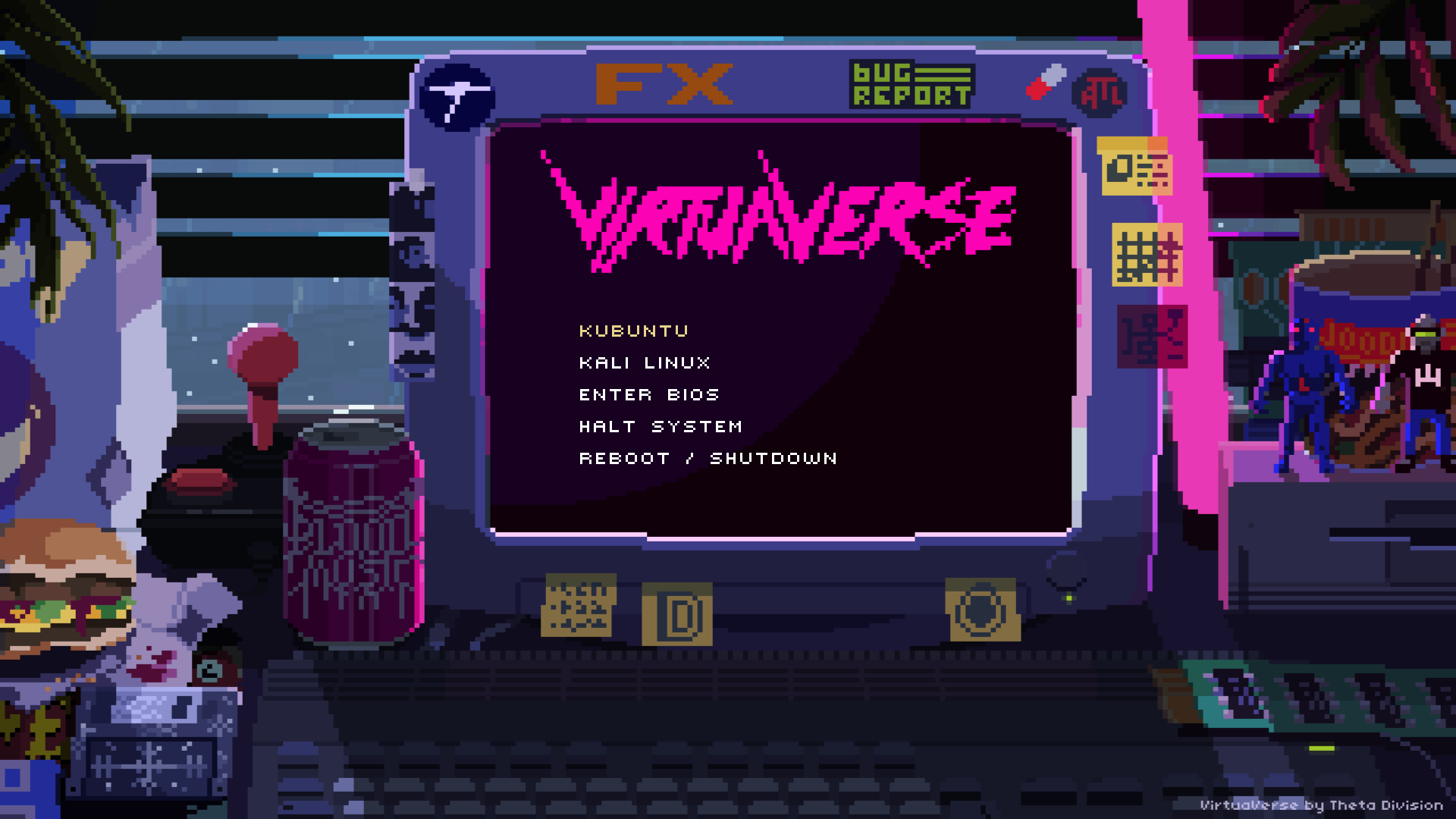
There are many available themes that can make your bootloader look way more interesting. The manual explains in detail how to make your own theme in GRUB Manual - Themes.
You can find a nice collection of GRUB themes available on this Github Repository. Below is a screenshot showcasing one of those creative themes.